The Ultimate Guide to Video Conference Etiquette and Setup
video conference tips
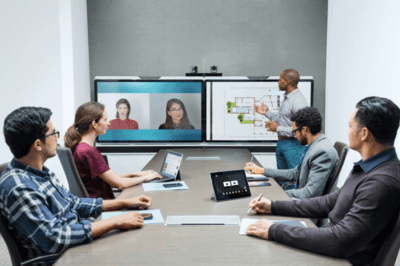
To make your video conferences more productive and valuable for everyone involved, it is essential to follow general best practices
. Whether you are attending in person or dialing in remotely, optimizing your approach will significantly elevate the meeting experience for the entire team
Here is a structured guide to ensure your next virtual meeting is a success.

Part 1: Optimizing Your Remote Setup
If you are participating remotely, your technical setup and physical environment are the foundation of a good call. Follow these steps to ensure the best possible experience
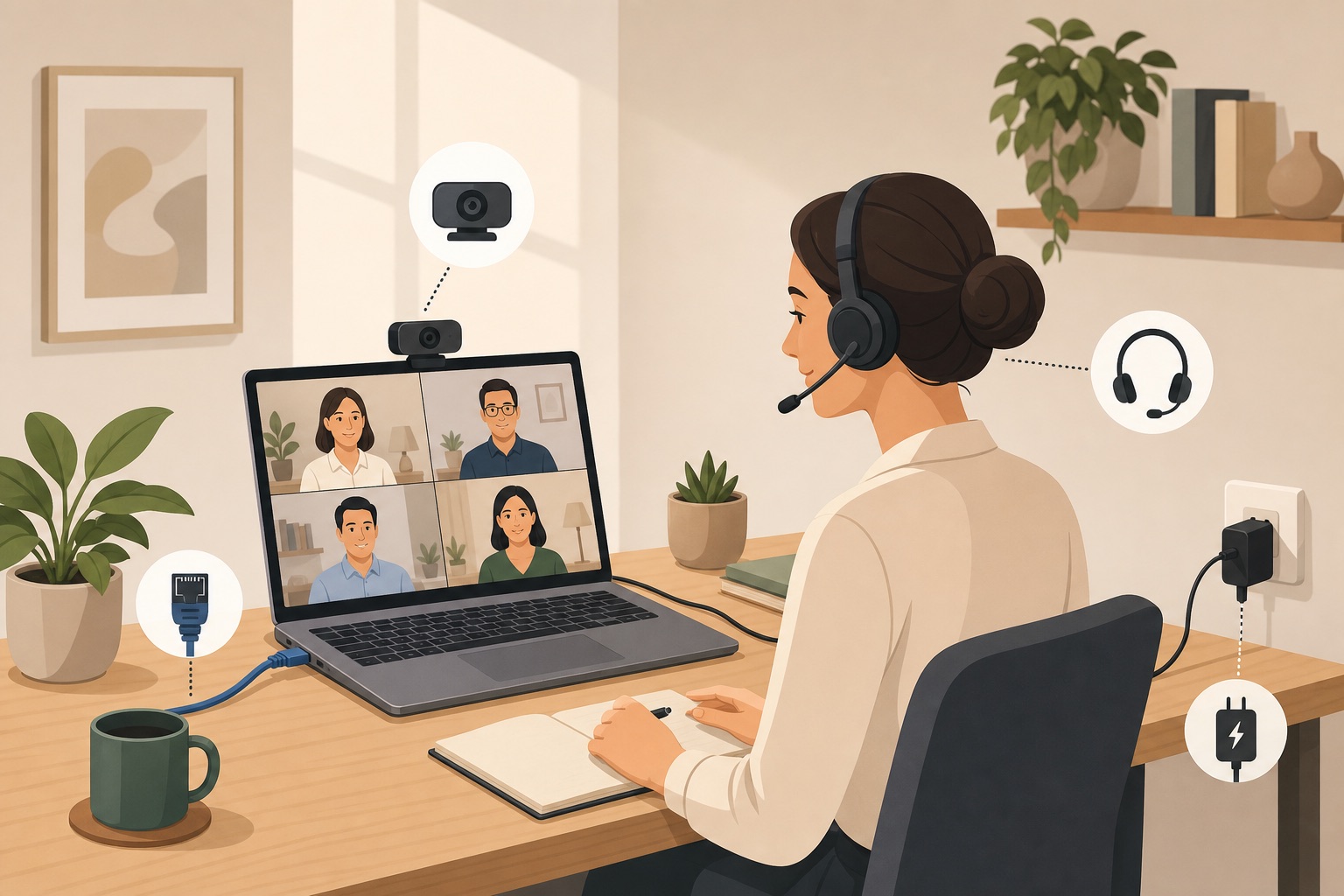
• Secure Your Connection: Whenever possible, use a wired Ethernet connection to avoid the speed issues and dropped calls commonly associated with WiFi
• Plug In Your Device: If you are using a laptop, connect it to its power adapter
. Relying solely on battery power can negatively impact your video quality
• Test Your Equipment: Ensure your camera, microphone, and audio output are ready to go
. It is highly recommended to use earbuds or a headset to prevent audio echoes and feedback (howling), even though most modern laptops and desktops have built-in audio hardware
• Run a Pre-Call Check: Always test your connection before the meeting begins; this is strongly recommended
• For Zoom users: Visit the Zoom website to test your audio and video connections
• For WebEx users: Enter your personal WebEx room, use the "Audio" drop-down menu to test sound, and check your screen to verify video output
• Optimize Your Environment: Be mindful of your surroundings and your visual presentation
• Choose a quiet location free from background noise
• Close window blinds to prevent backlighting, making it easier for others to see your face
• Adjust your seating or camera angle to ensure you are properly framed in the shot
• Dress for the Camera: Wear clothing in solid, neutral colors
The way you interact on a video call requires a different approach than face-to-face conversations. Use these communication tactics to keep the meeting flowing smoothly:
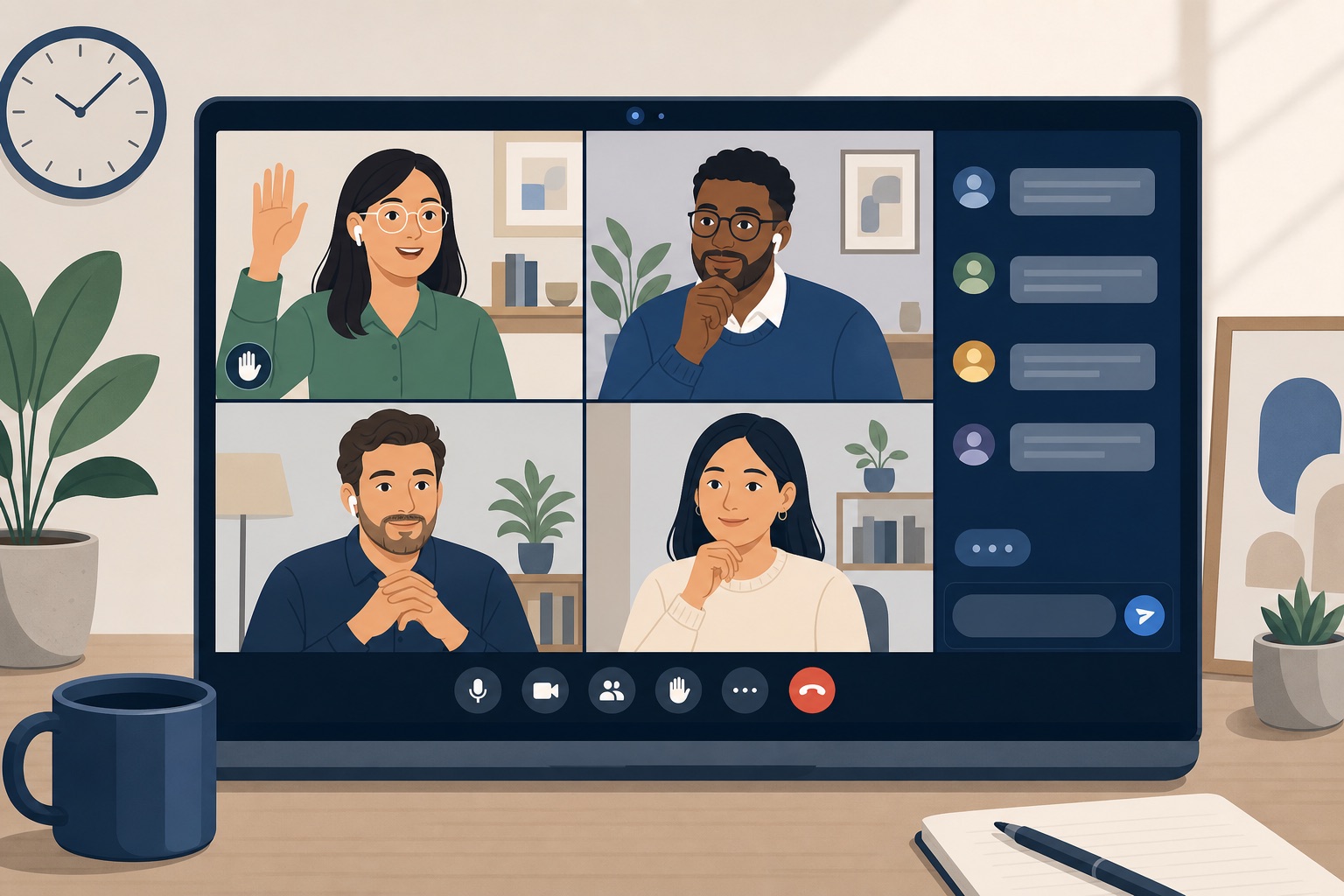
• Account for Latency: When you ask a question or request information, leave extra time for people to reply, as the system may experience slight transmission delays
• Be Direct: To avoid confusion, direct your questions to specific individuals rather than the general room
• Manage Interruptions: Try to avoid interrupting others while they speak
. Many video systems use voice-activated switching to focus the camera on the active speaker; talking over someone can disrupt this feature
• Establish Ground Rules: Build a mutual understanding among participants on how and when to interrupt
. For example, agree to have people physically raise their hands or use another signal to indicate they want to speak
• Utilize the Chat: Consider using the chat function to post questions that need answering without verbally interrupting the flow of the presentation
• Stay Alert: Always maintain awareness of your actions
. Because you are on video, participants can see what you are doing at all times.
• Foster a Safe Environment: Create a team culture where participants feel safe respectfully pointing out when someone is breaching meeting etiquette
Part 3: Troubleshooting and Contingencies
Even with perfect preparation, technical issues can arise. Keep these final tips in mind:
• Follow Instructions Carefully: Read all instructions provided in the video conference invitation
Lighting and Camera Position
Good lighting matters as much as a working camera. Face a window or place a soft light source in front of you so your face is evenly lit—backlight from a bright window behind you will turn you into a silhouette. Position the camera at eye level to maintain natural eye contact and avoid unflattering angles. A quick test call before the meeting helps you catch grainy or dark video early.

Strengthen and Backup Your Internet Connection
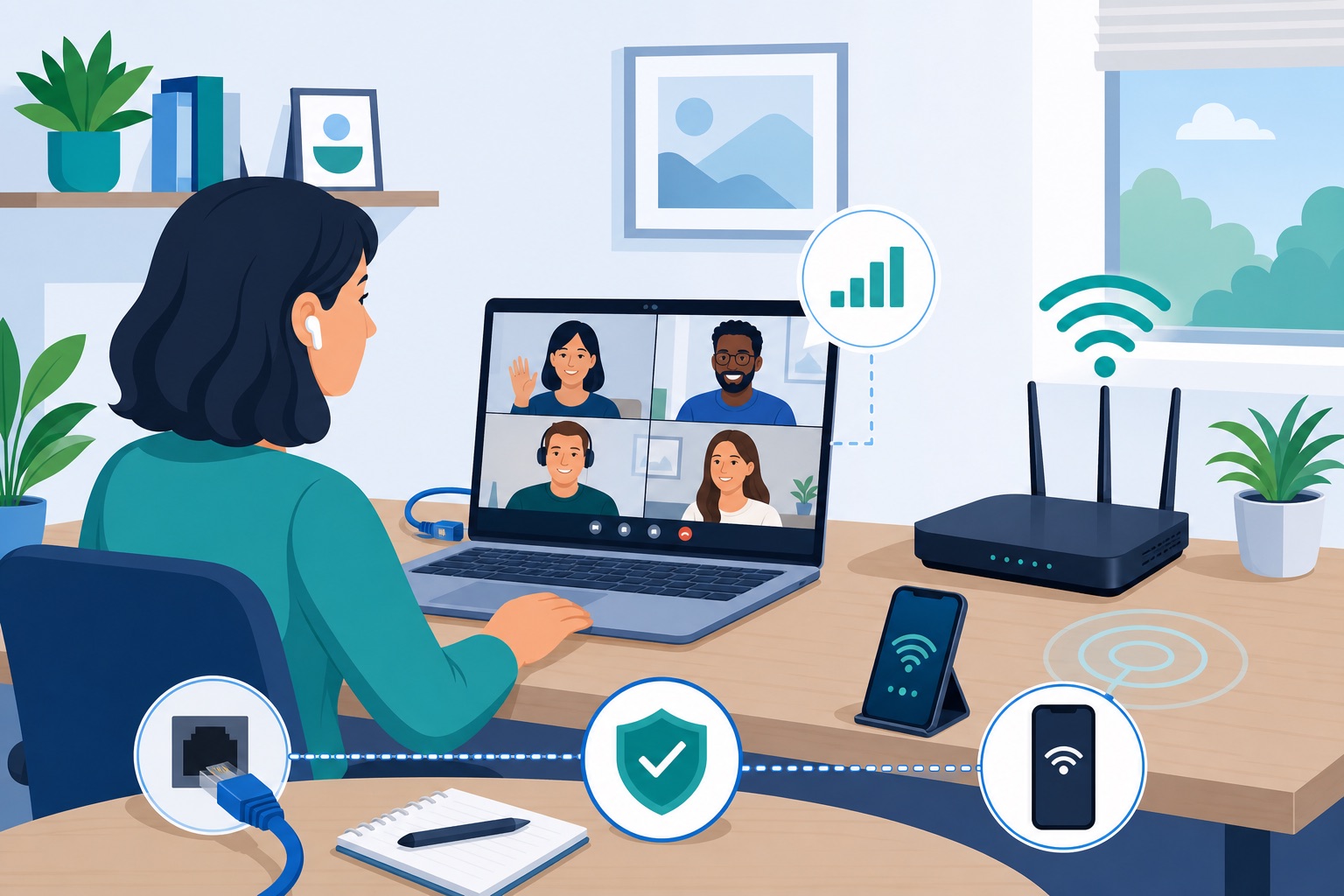
Before an important call, run a quick speed test to confirm your connection can handle video. If WiFi is unstable, move closer to your router, disconnect devices you are not using, or switch to a wired Ethernet connection when possible. Keep a backup plan ready: tethering your laptop to your phone's mobile data can save a meeting if home broadband drops mid-call.
## Dress Like You Would for an In-Person Meeting
Working from home makes it tempting to stay in loungewear, but your appearance still signals professionalism on camera. You do not need a full suit—business-casual is usually enough—but avoid pajamas or overly casual tops. Most frames show you only from the waist up; if you might need to stand, dress accordingly from head to toe.
Mute Yourself When You Are Not Speaking
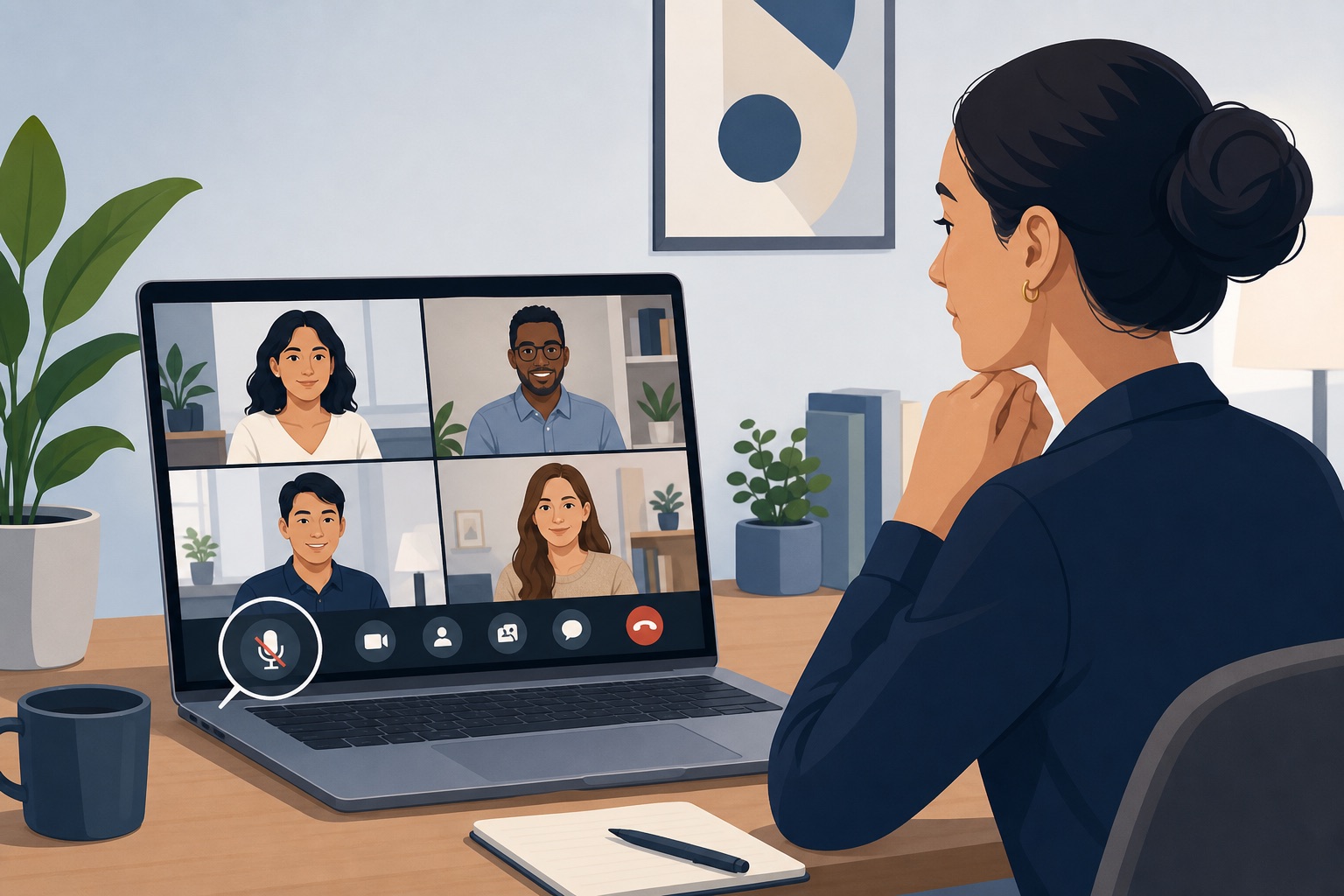
Muting is basic courtesy in virtual meetings. Even when you are quiet, your microphone can pick up coughing, typing, notifications, or ambient noise that distracts others. Unmute only when you intend to speak. On most platforms, toggling mute takes a single click in the meeting toolbar.
## Stay Present—Avoid Multitasking
On camera, distraction is visible. Treat a video call with the same focus you would give an in-room meeting:
- Silence or turn off your phone
- Close email, chat, and other apps that trigger notifications
- Do not work on unrelated tasks or eat during the call
- Let others finish speaking before you jump in
Missing a question because you were scrolling is rude to the organiser and wastes everyone's time.
Keep Your Space Quiet and Camera-Ready
If you share your home with family or roommates, tell them when you have a meeting and remind them a few minutes before it starts. Scan what appears behind you—clutter, laundry, or personal items can draw attention away from the conversation. A tidy, neutral background keeps the focus on you and your message.

Related guides
- Video editing tips
Beginner workflows plus Premiere Pro, CapCut, Resolve, and other editor overviews.
- Tiktok Shop News
Policy moves, seller tooling, and commerce signals for TikTok Shop teams—curated for operators, not hype.